

Trim the start and the end.
Without opening an editor.
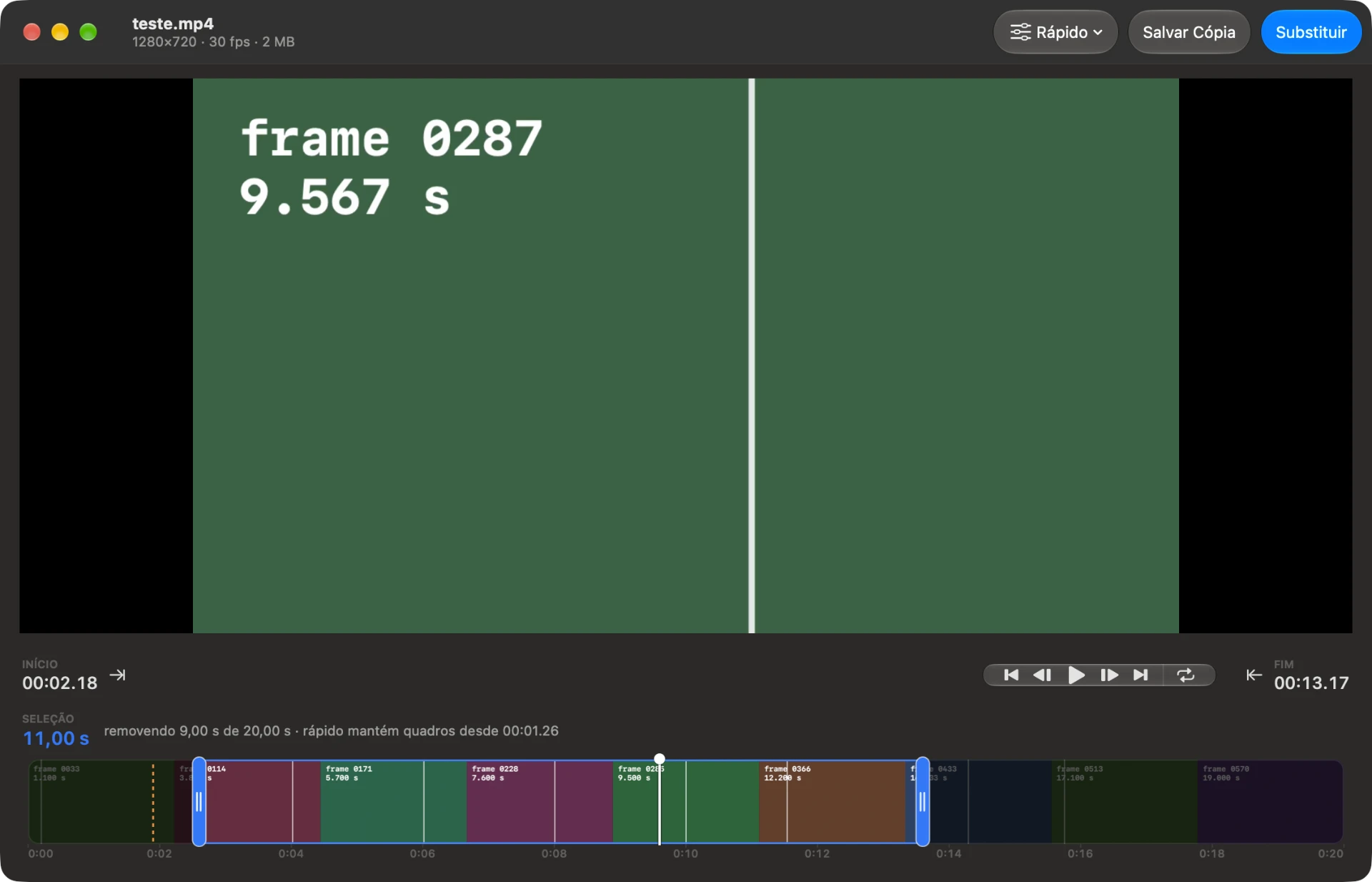
Two handles over a filmstrip, a frame-accurate preview and one click. The original file is replaced in place, or a copy lands next to it. In fast mode nothing is re-encoded: a 2 GB clip comes out trimmed in a fraction of a second, with quality untouched.
macOS 15 or later · Apple silicon and Intel · free and open source · about 2 MB
to trim a clip in fast mode, measured in testing
the accuracy of the preview and the handles
frames sent to the cloud; the entire trim happens on your Mac
Nothing leaves this Mac.
No cloud, no upload
The trim is done by AVFoundation inside your Mac. It works in airplane mode.
No account, no tracking
There is no sign-up, telemetry or analytics. The app does not know who you are. The only network access is the update check, which queries the GitHub releases without sending anything about you, and can be turned off in the app menu.
Your original is safe
The new file is written to a temporary file on the same disk and only then takes the place of the original, all at once. If you prefer, the original goes to the Trash first.
Features
Trim without re-encoding
Fast mode copies the video stream as it is. No frame is re-encoded, so there is no quality loss and no wait proportional to file size.
Frame accuracy
The preview seeks with zero tolerance: the frame you see is exactly the first one of the final file. The arrow keys step frame by frame.
Straight from the Finder
Right-click the video → Services → Trim with Quick Cutter, or ⌃⌥T. It also works through “Open With” and by dragging the file onto the window.
Replace or copy
One button for each intent, with no dialog in the way. The copy lands next to the original already named correctly.
Atomic replacement
The swap preserves the name, the Finder tags and the file's creation date. The original is never left half written.
Genuinely native
Pure AppKit with the macOS 26 glass, no Electron, no dependencies and no background process. The whole app is about 2 MB.
It updates itself
When a new version is out, the app lets you know and shows what changed. If you accept, it verifies the published checksum before replacing any file, then relaunches already updated.
You see exactly where the cut lands.
The filmstrip is generated in the background while you are already moving the handles. Drag one and the preview jumps to that frame; hold ⌥ for fine adjustment. Start and end times, the length of the selection and how much is being discarded are shown at all times, and the dashed orange line marks the keyframe before your in point.

Fast or Precise
| Fast (default) | Precise | |
|---|---|---|
| Re-encodes | No | Yes |
| Speed | Milliseconds | Proportional to duration |
| Quality | Identical to the original | Re-encoded at high quality |
| Where the cut lands | At the exact point, via edit list | At the exact frame |
Fast mode uses AVFoundation passthrough, which writes an edit list: on macOS, in QuickTime and in any AVFoundation-based player, playback starts exactly where you marked it. The frames between the previous keyframe and your in point stay inside the file, and some players that ignore edit lists may show them. In Mode → Snap start to keyframe you align the two and the cut looks identical in any player. If you need the exact frame everywhere, switch to precise mode.
How it works
- 1
Open the video
Right-click in the Finder → Services → Trim with Quick Cutter, or drag the file onto the window.
- 2
Mark the range
Drag the handles, or place the playhead and press I and O. The preview follows in real time.
- 3
Replace or copy
“Replace” swaps the original file. “Save Copy” creates a new one next to it.
Shortcuts
| Key | Action |
|---|---|
| Space | Play / pause inside the selection |
| ← → | One frame back / forward |
| ⇧← ⇧→ | One second |
| I / O | Set the start / end at the playhead |
| ⌥I / ⌥O | Jump to the start / end of the selection |
| L | Loop the selection |
| ⌥ + drag | Fine adjustment of the handles |
| ⌘S | Save a copy next to the original |
| ⇧⌘S | Save a copy to… |
| ⌘↩ | Replace the original file |
| ⌘R | Restore the whole clip |
Download Quick Cutter
Free and open source
Requirements
- macOS 15 (Sequoia) or later
- Mac with Apple silicon or Intel
On first launch macOS asks for confirmation in System Settings → Privacy & Security, because the app is ad-hoc signed and has not gone through Apple's notarization yet.